

Tuttnauer MiniBio Auto-Reader Instructions for Use Guide
Spore testing is one of the most important steps in the ownership of an autoclave. Spore testing is what allows you to verify the sterility of your autoclave, and a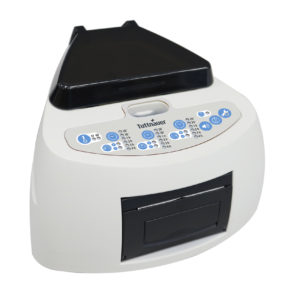 failed spore test could mean trouble down the line if the issue isn’t taken care of. But to get the best results in a compact package, you also need the best testing equipment. And with the Tuttnauer MiniBio Auto-Reader, spore testing has never been simpler or more efficient. We’ve talked about the compact powerhouse that is the MiniBio Auto-Reader in a previous article here on our site. So in this article, we’d like to go over more information to help you understand the MiniBio Auto-Reader better: the Instructions for Use Guide.
This MiniBio Auto-Reader Instructions for Use Guide goes over the instructions for use, provided by the manufacturer, Tuttnauer, for proper operation of your incubator. If you have any questions about the Tuttnauer MiniBio Auto-Reader or anything else, give us a call at 704-966-1650 Option 3 for our Free Tech Support Line.
Instructions for Use
Start-up
1-Place the auto-reader on a firm surface, free from vibrations, away from sunlight, currents of hot or cold air, chemicals and corrosive or flammable substances. Do not place the equipment in a way that disconnection of the plug from the power supply could be difficult. Leave a gap of at least 10 cm from the wall. Do not move the auto- reader periodically or during its use. Connect the auto- reader to a secure and stable electrical power source. Do not wet or heat the auto-reader. If liquid is spilled on the auto-reader, disconnect it and dry it immediately. Before turning on, verify that all reading positions are empty. To verify the proper functioning of the equipment, readout of unexposed BIs should be performed in every incubation position. The result from this readout should be positive. Follow the instructions of this guide in order to carry out readout.
2- Turn on the incubator by connecting the end of the AC of the power supply to the power source and then connect the other end of the source (plug) on the rear of the unit. The equipment will start by running the last time and temperature set-up.
3-Synchronize the incubator with local time. See configuration methods in the Time setting mode section All devices are manufactured with the following settings:
– Time zone: UTC +0:00
Printing language: English
If you want to change the time zone, refer to Modification of time zone section. If you want to change the print language, refer to Modification of print language section.
4- Check that required incubation temperature is correct.To change it, press button for 3 seconds. Lights corresponding to 37 ºC and 60 ºC will start blinking, indicating that the temperature program must be selected. Press the button to select the incubation temperature program, 37 ºC or 60 ºC. After 3 seconds, temperature modification will be accepted. For 37 ºC, the auto-reader will automatically select 4 hs. final readout for all positions. For 60 ºC the incubator allows choosing between 20 minutes, 30 minutes, 1 hour, 2 hours or 3 hours final readout. It is possible to select an incubation program for each of the positions depending on the final reading characteristics of the indicators to be used. Check that the time setting is appropriate for the BIs to be incubated in each position. To change the time program, press the button of the correspondent position as many times as necessary to choose the right setting.
5- Wait for the temperature of the machine to be stable. Once is stable, the indicator of the desired temperature will remain steady. Do not place any biological indicator in read positions until the incubator does not confirm temperature stability. The incubator will keep running the incubation program during all reading process. The system does not allow the incubation program to be modified once the reading is started, except it has been completed.
6- Reading can be initiated when the temperature blue light remains stable indicating that incubation temperature was met. Then an automatic testing of the status of the incubation positions of the biological indicators will be performed. The indicating lights of each position will be turned on to show the result: green light will show a satisfactory result while red light will indicate error. When the device detects an error in any position, it will print a ticket indicating date, time and positions with error. To guarantee the reliability of the results, these positions will be deactivated avoiding their use. To make this clear, red light in that position will remain blinking indefinitely to indicate that the position has been disabled. For the correct performance of the automatic check, it should be done with the protective cover closed. Read BI´s instructions for use. Before placing the vials in the incubator, press the top to seal the tube. Crush the internal ampoule (using the ampoule crusher within the box of BIs or the one located within the incubation area of the incubator) and make sure that the liquid has completely wet the spore carrier placed at the bottom of the biological indicator plastic tube. Do not remove or change placement of BI once the reading process has begun. If this occurs, results may be invalidated. Use a non-sterilized biological indicator as a positive control every time a processed indicator is incubated. For more information refer to the Positive Control section of this user guide.
7- Place the rapid BI in a reading position, close the protective cover and wait for the result. Reading will start automatically. Immediately after placing the BI in a position, the auto-reader will emit a sound alarm indicating that reading has successfully began and status position light will turn on and will blink until the result is informed.
NOTE: If the incubator does not run automatically, it might indicate that the incubator temperature is not steady yet (check the temperature indicating light to remain steady) or that the incubation position is disabled due to an error in the initial autotest.
8- When a positive result is detected, the red light and the audible alarm will turn on. This will indicate that the sterilization process to which the BI was subject, has failed. 30 seconds after removing the BI from the incubation position, the alarm and the red light will turn off automatically and the position will be available to start a new reading. The negative BIs will be informed with a green light in the corresponding position, this will indicate that the sterilization process to which it was subject has been successful. The green light will remain on for up to 30 seconds after the BI is withdrawn from the reading position. The incubator will inform results within 20 min. (60° C), 30 min. (60 ºC),1 h. (60 ºC), 2 hs. (60 °C), 3 hs. (60 ºC) or 4 hs. (37 ºC), according to the program selected. These periods of incubation are the time-limits used by the equipment to inform the fluorescence final readout.
9- Every time a positive result is detected, it will be infor- med through the printing of the corresponding ticket and with an audible alarm. The alarm can be cancelled by pressing the button .
10- To register the tickets, take the paper and press up for the paper to be cut with the serrated edge of the printer.
NOTE: If the paper for ticket printing runs out, the attention blue light will flash rapidly. To replace the paper, follow the instructions in Replacing the roll paper in the printer. The incubator will save the last 3 results, for re-printing, follow the Reprinting of the last results instructions.

Remaining Incubation Time
The auto-reader allows verifying the remaining incubation time in every reading position by ticket printing. Whenever a reading process is in course, press and hold the button for 3 seconds, a ticket will then be printed informing reading position, incubation program and remaining incubation time. To verify remaining incubation time of 2 or more readings in course press 2 buttons simultaneously; the device renders a ticket informingremaining incubation time of all positions.

Positive Control
The positive control should belong to the same batch of the processed BI. Use a non-sterilized biological indicator as a positive control every time a processed indicator is incubated. Incubate the processed biological indicator and the indicator used as positive control as specified in the instructions.
Press the cap to seal the tube and crush the ampoule, make sure the media completely wets the carrier. Write a C (for control) and the date on the label. The positive control can be placed in any position of the incubator. The positive control should belong to the same batch of the processed BI. It is a good practice to use a positive control, this helps ensuring:
- Correct temperature is reached.
- Viability of spores has not been altered due to improper storage temperature, humidity, or proximity to chemicals.
- Capability of the media to promote rapid growth and fluorescence generation.
- Proper functioning of the incubator.
Interpretation of Results
Rapid Readout
The indicator used as positive control should show a positive result (red light ). The processed BI results are not valid until the biological indicator used as positive control shows a positive result . A processed BI with a positive result, indicates a failure in the sterilization process. A negative result, (green light ) after 20 min. (60 ºC), 30 min. (60 ºC), 1 h. (60 ºC), 2 hs. (60 °C), 3 hs. (60 ºC) 4 hs. (37 ºC) according to the used program, indicates that the sterilization process was effective. Take action on any positive result immediately. Always retest the sterilizer and do not use the sterilizer for processing loads until 3 consecutive BI results are negative.
Visual Readout
The Rapid readout system allows the confirmation of results by color change after 48 hours or 7 days incubation analysis (if 7-day readout is made, an humidified incubator will be required to avoid media dry out). If the sterilization process was not successful, the growth media contained in the indicator will turn to yellow, as it is shown in Instruction for Use of BIs. If the sterilization process was successful, the media will remain unchanged. The color of the growth media in the BI used as positive control must turn to yellow during the process of incubation for the results to be valid. Record the positive ones and discard them immediately as shown in the biological indicators instructions for use.
Disposal
Dispose Bls after use, according to your healthcare and safety regulations. Positives BIs can be sterilized (see BIs instructions for use). It is not possible to reuse a BIs.
Audible alarm
An audible alarm will sound every time a positive result is detected by the incubator. The alarm allows the user to immediately detect a positive result without the need to visually control the equipment. The alarm can be cancelled by pressing the button
Cancellation of a Reading
When a BI is removed from its position during incubation process, an audible alarm will sound to indicate that the tube should be returned to the corresponding position. If the indicator is not re-introduced into the reading position after 10 seconds of being withdrawn, the reading will be cancelled and the cancelation will be informed through the printing of a ticket.
Temperature Monitoring
The incubator contains an internal temperature control. If the temperature falls outside of the specified range (37±2) ºC or (60±2) ºC, the blue temperature led light will start to twinkle. Temperature can be externally monitored by using a thermometer. The auto-reader has a special hole for placing the thermometer which is located at the right side of the device.
Thermal Paper Specifications
- Recommended paper: JUJO AF50KSE3 or similar.
- Paper width : 58 mm
- Maximum paper thickness: 60 g/m2
- Maximum diameter size: 23 mm
Replacement of the Paper Roll
The printer uses thermal paper rolls.
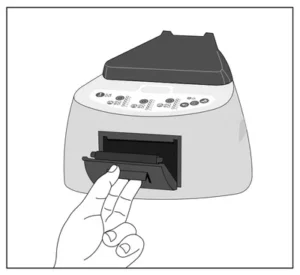
1. To replace the paper roll, pull the handle of the printer’s door. Open the printer’s cover and remove the spent roll.

2. Place the new paper roll with the outer side up.
3. Close the printer cover by pressing on the sides of the lid.
NOTE: You can check the correct paper replacement by pressing , this button will force the advance of the paper a few centimeters.
Reprinting of Results
The incubator allows reprinting of the last 3 results by fluorescence readout. For printing the results, press the button for 3 seconds.
Care and Cleaning
Clean the outer surface of the incubator with a damp cloth moistened with a small amount of detergent. Do not clean interior components. If additional cleaning of the internal components of the equipment is required, contact your distributor or manufacturer. Always unplug the auto-reader and allow it to cool before cleaning. Do not immerse the unit in liquid.
NOTE: The auto-reader does not need routine maintenance.
The auto-reader allows updating the firmware periodically (program that controls the device and defines its different features) through the use of a firmware update utility. This software verifies, by using the internet, the latest firmware version available for the auto-reader; downloads it and installs it in a few seconds without the loss of any device data.
Update Procedure
Before starting the process, turn off the incubator for five seconds, then turn it on and follow these steps:
1-Connect the incubator to a PC using a USB cable and make sure to have an internet connection.
2-Open the firmware update utility.
3-Select the device and press Start button to update.
4- Wait until the software indicates that the upgrade process is complete. The auto-reader prints an update confirmation ticket. If it was already up to date, it will print nothing.
NOTE: This process must be repeated every time a new firmware version is available, this will be informed in the website.
Setup Mode
The auto-reader has a setup mode from which, the device time zone and the print language can be set up. To enter
Setup mode, turn on the incubator while holding down the button . The red and green LEDs in the three positions will remain on, indicating that the device is in this mode. The printer will render a ticket indicating that it is in Setup Mode.
To change the time zone and the print language, follow the instructions below. When finished, restart the incubator to exit Setup mode.
Modification of Time Zone
The time zone modification function allows changing the time zone of the device to suit the time zone of your country. To make this change, the incubator must be started in Setup mode (see Setup Mode), then press the button. The current time will be printed to set a reference. To subtract hours, press the button as many times as necessary. To add hours, press the button as many times as necessary. After 2 seconds, a ticket will be printed informing the selected time. To confirm the change hold down the button for 3 seconds. To discard the changes, unplug the incubator from the power source.
Modification of Printing Language
This functionality allows changing the language in which the incubator printer renders the tickets. To make this change, the device must be started in Setup mode (see Setup Mode), then press the button . The current language and list of available languages will be printed to establish a reference. Press the button to scroll up and to scroll down. After 2 seconds, a ticket will be printed informing the selected language. To confirm the change, press and hold the button for 3 seconds. To discard the change, unplug the incubator from the power source.
Time Setting Mode
Connect the auto-reader via the USB port to a PC and start-up the program. Select the Auto-reader and press the Clock Sync button, the auto-reader will be synchronized with the PC’s clock. Synchronization can only be done as long as there is not an ongoing reading.
As always if you have any questions about this process or anything else please feel free to contact us and take advantage of our “FREE TECH SUPPORT.”
We also offer FREE VIRTUAL TECH SUPPORT to “See and Talk” with a “Real Time Live Technician” for any problems you may be in need of help with.
You can also use our “FREE MAINTENANCE PROGRAM”. Take the guesswork and worrying about what unit is due for maintenance and which maintenance cycle it is time for. We will keep track of all your autoclaves and let you know when it’s time for anything.
You can find more info on the Tuttnauer MiniBio Auto-Reader on our site here. →